Display a motionEye stream in Home Assistant (Lovelace)
I'm going to assume you already have a Home Assistant setup running and the motionEye server is working properly. For this example, we're going to use the mjpeg stream from motionEye.
Get the stream URL
The first thing we need to do is getting the URL we need for the integration.
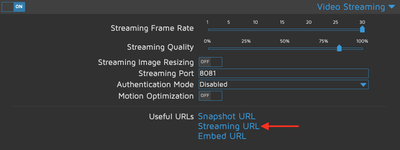
You'll find it in the "Video Stream" tab in the settings on your motionEye
server. I'm using the Fast Network Cam option, but you can use the normal mode
as well. If you're using the normal mode, note down the Snapshot URL too, it can
be used for the still_image_url property in the camera integration.

Home Assistant
There are several different ways to display a camera stream in Lovelace. The method I went with is the Picture Entity Card. To use a camera in Lovelace, we need to add the camera and stream integrations:
configuration.yaml
stream:
camera:
  - platform: mjpeg
    name: My Fancy Camera
    still_image_url: "http://URLFROMMOTIONEYE/picture/1/current/"
    mjpeg_url: "http://URLFROMMOTIONEYE:8081/mjpeg"
Make sure to check that the port matches the one you set in motionEye and to
append mjpeg to actually get the MJPEG stream.
Once the camera and the stream are set up properly, we need to add the picture entity card to Lovelace:
ui-lovelace.yaml
- type: picture-entity
  entity: camera.my_fancy_camera
  camera_view: live
That's it. Restart Home Assistant and you should see the camera stream:
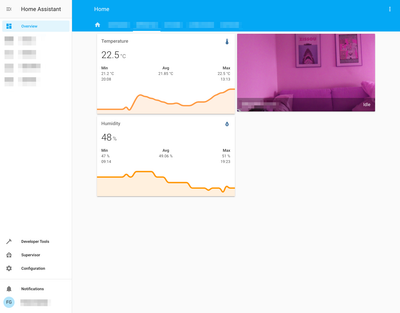
Sorry for the pinkish image; I'm running the Pi NoIR Camera V2 without a filter.